

After it being out for about two weeks and accidentally downloading it instead of waiting for the patch update like normal, I realized it became time to search for ways to make this update work for me and show that it improve my phone from iOS 9 before throwing my phone across the room. With emojis being added, changed, or taken away, the lock screen and control center layout changing, and new feature being added to make this update seem as big as Apple made it out to be, I found a handful of tips and tricks to bring features back as well as some new features to make this update seem beneficial to myself.
1. Just use your finger.
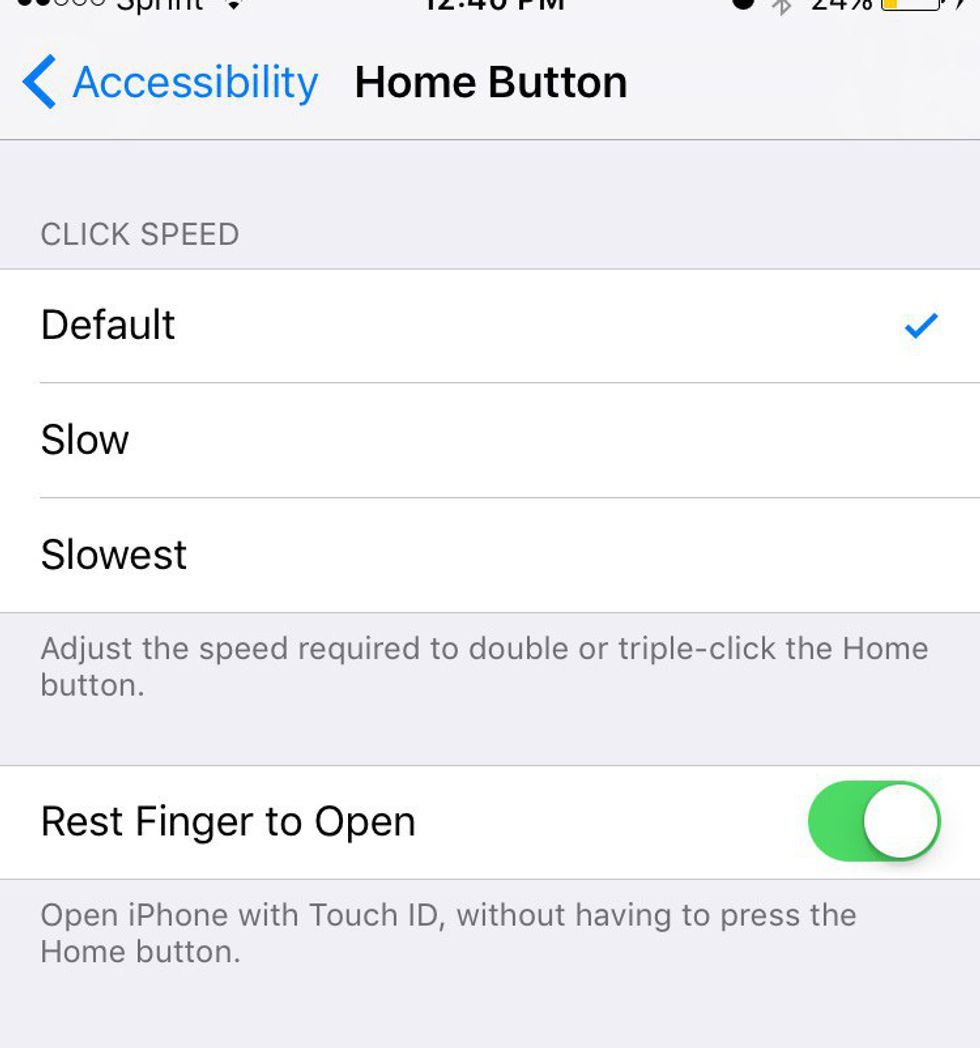
When iOS 10 was released the lock screen had changed on everyone. One thing that annoyed myself the most was the needing to click to open my phone after scanning my fingerprint. After just scrolling through my settings I discovered you can just scan your finger to unlock still! All you need to do is go to Settings> General> Accessibility> Home Button> and then just turn on Rest Finger to Open,
2. Delete the preinstalled apps.
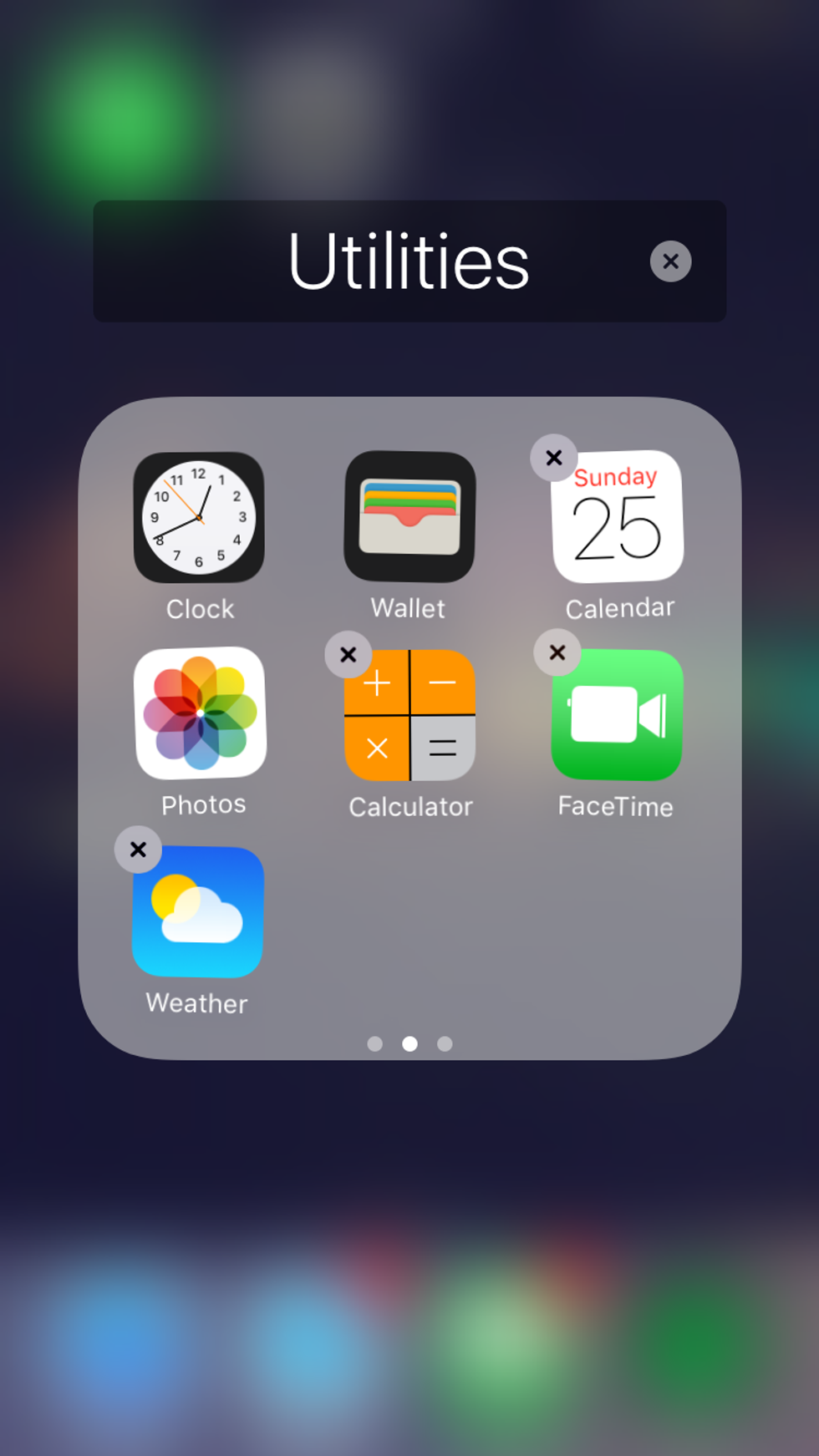
Finally the day has come, we can now delete apps that we never use that! All you have to do is press and hold until it shakes and then tap the "x" and although its only 150MB it can still help clean up your phone.
3. Tools for tools
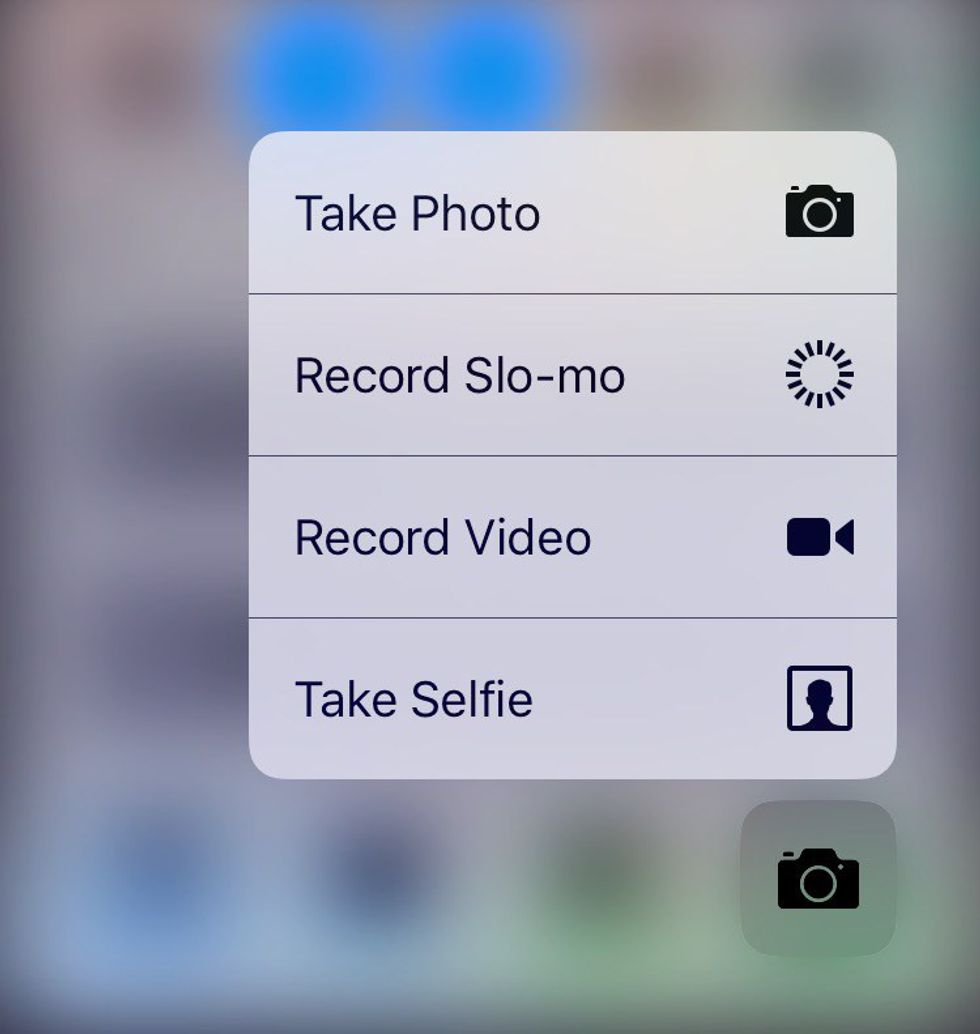
By using 3D touch on the control center, make the flashlight brighter or dimmer, start a timer, copy the calculator, or start the camera from what setting you need!
4. Notification clean up
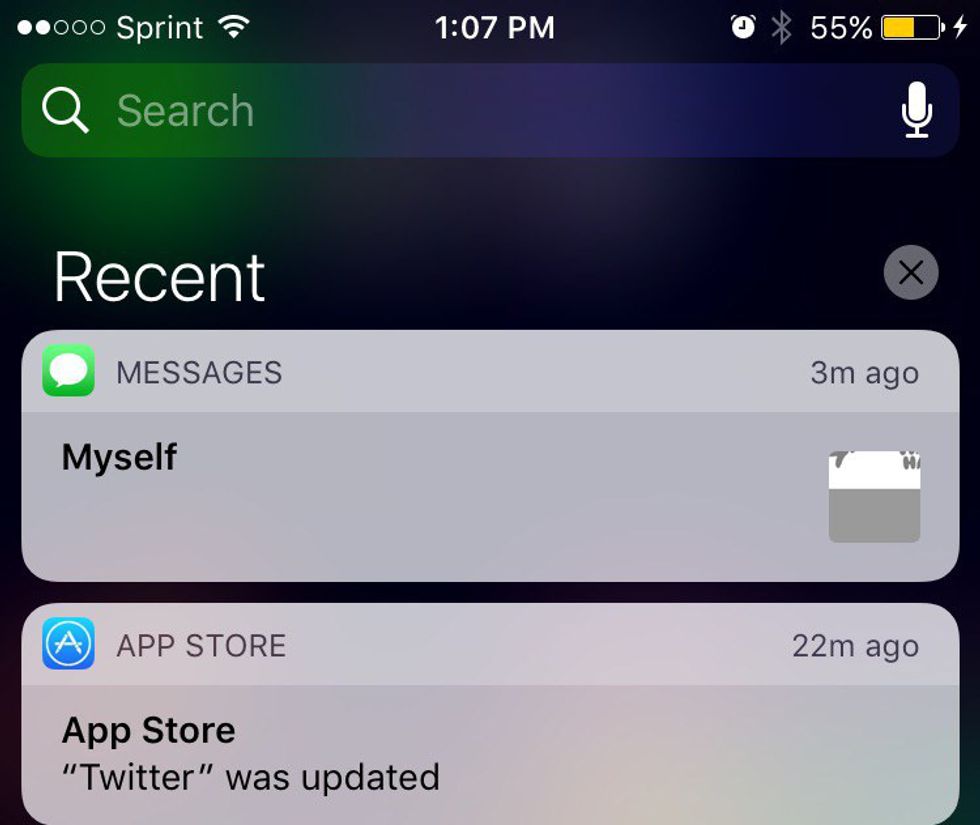
Now instead of having to delete all the notifications one by one or day by day you are now able to just tap the one "x" next to recent to clean them all up after forgetting to do it for days or weeks.
5. Flick of the wrist
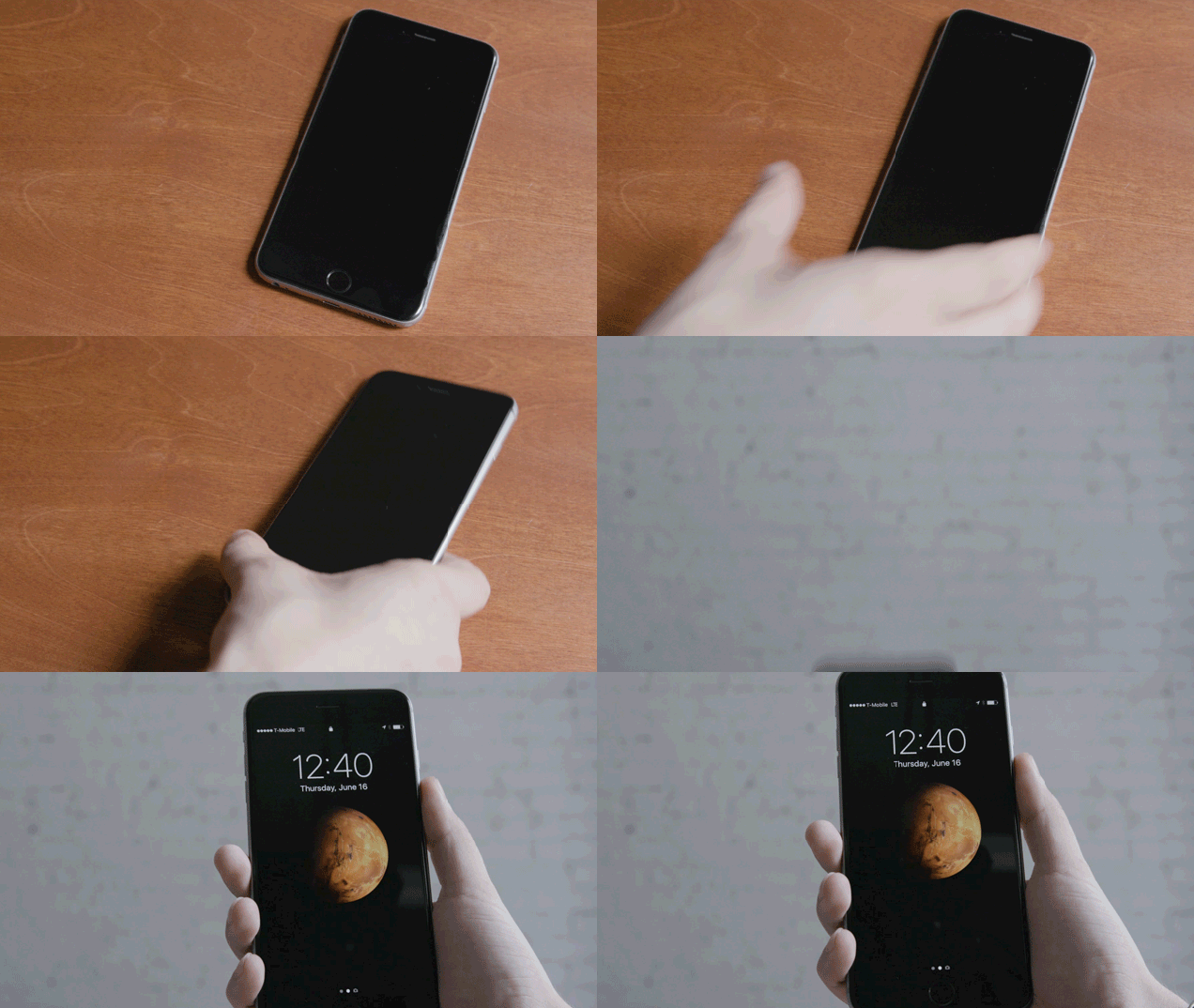
When picking up the 6s, SE, or 7 you can set the phone to wake to check the time or a notification without pressing a button! Just go to Display and Brightness in settings and enable or disable the Raise to Wake feature and raise the phone.
6."Oh I didn't see it"
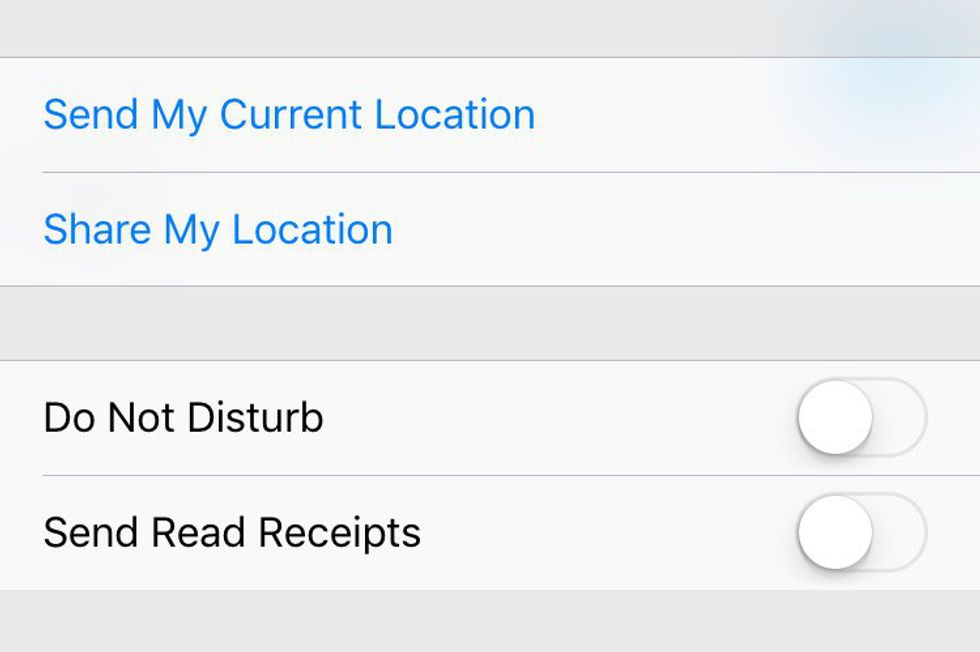
Like to leave your read receipts on but have that one person you don't want to talk to at that moment? Now you can turn off receipts for certain people. Just hit the "i" on messages for the person and scroll down and slide the button to disable send read receipts.
7. React to a text

Now just like on Facebook when you like a post or photo, you can react to texts when you don't know what to say to someone. Just double tap the message to see the selection above and make sure reduce motion is off in settings.
8. Make your messages fancier
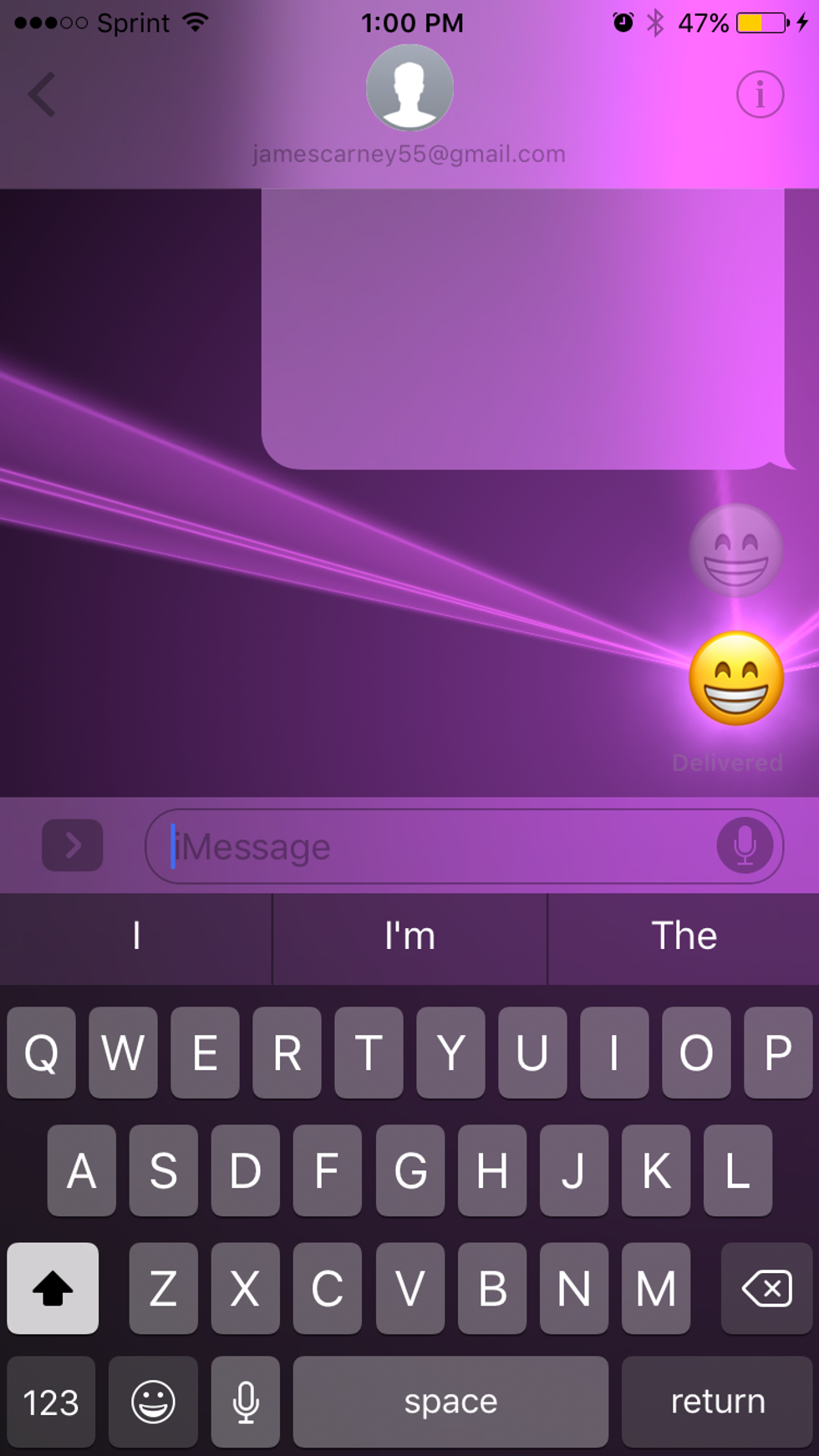
Add a little pizzaz to your messages now when announcing big news or wanting to ask someone to get food with a flashy appeal. Just press and hold the send button and use the first group to just add a little something to the text bubble or swipe left for the full screen party effects like lasers, balloons, or fire works.
9. Read your voicemails
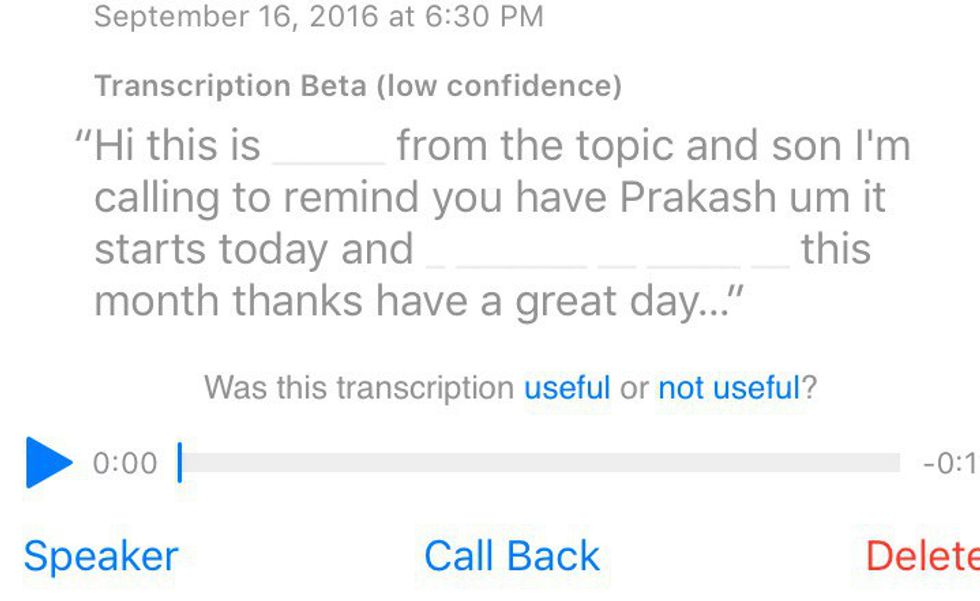
If your out and missed a call and theres a voicemail, no need to go somewhere private or put a phone to your ear mid conversation. By just tapping on the voicemail, a text of the voicemail will appear. This feature is still in beta and could come out gibberish.
10. Search anywhere
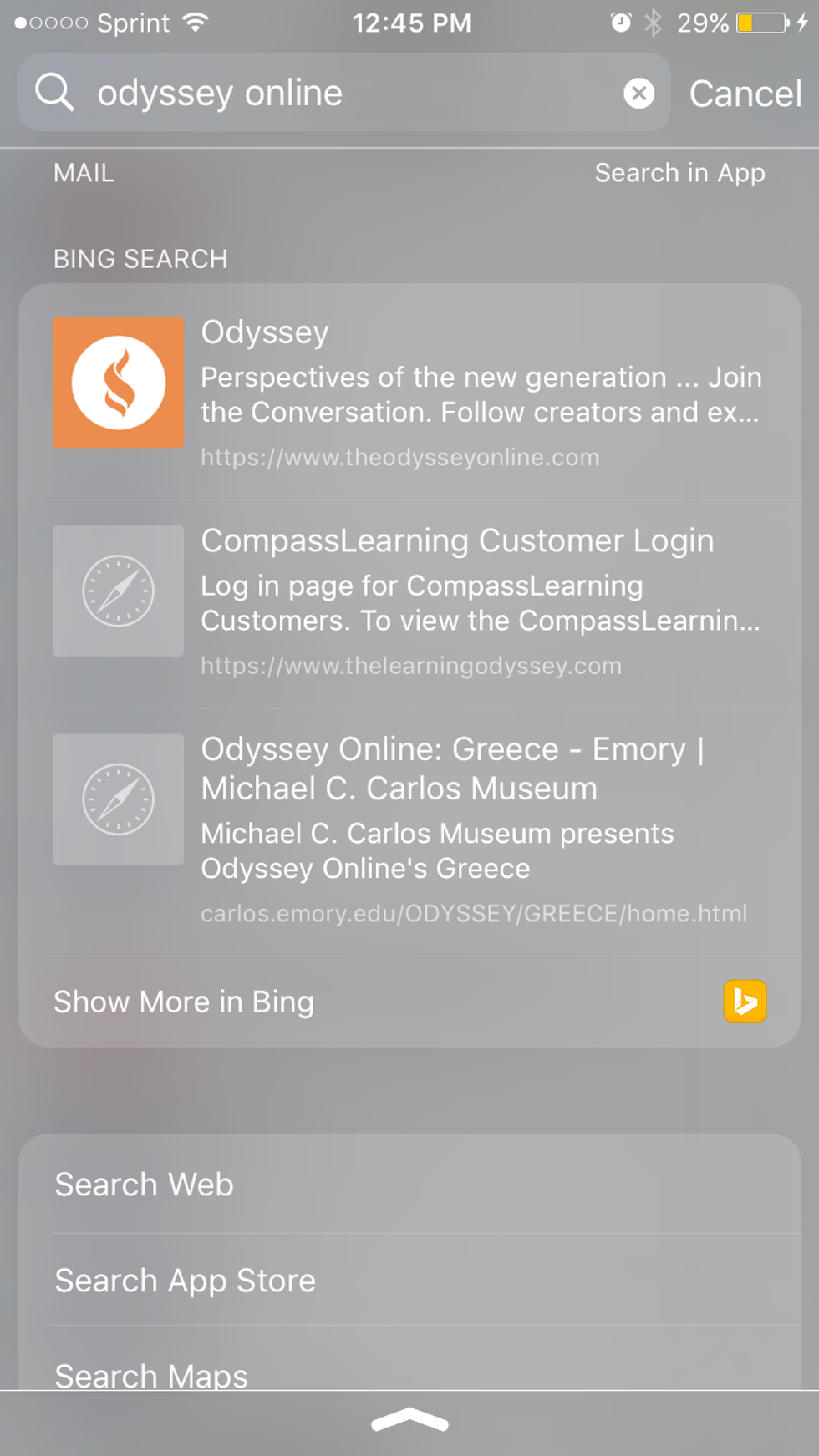
In iOS 9, Spotlight was only on the home screen. In iOS 10 you can search anywhere by just pulling down your notifications. Now you can find contacts, apps, or google that random thought right from an app without opening your web browser on your phone.